fedora 20 安装oracle 11g过程
This article presents how to install Oracle 11G on Fedora 20.
Read following article how to install Fedora 20 Linux: Install Fedora 20 (for comfort set 2G memory for your virtual machine before proceeding with Oracle software installation).
Installation software is available on OTN version 11.2.0.1 or metalink 11.2.0.4. In this installation I’m presenting installation for 11.2.0.4 but for previous version 11.2.0.X it shouldn’t be different.
Check article for new release Install Oracle 12C Release 1 (12.1) on Fedora 20
Oracle software which I verified
release 11.2.0.4
p13390677_112040_Linux-x86-64_1of7.zip p13390677_112040_Linux-x86-64_2of7.zip
OS configuration and preparation
OS configuration is executed as root. To login as root just execute following command in terminal.
su - root
Add groups
–required groups
/usr/sbin/groupadd -g 501 oinstall
/usr/sbin/groupadd -g 502 dba
/usr/sbin/groupadd -g 503 oper
Add user Oracle
/usr/sbin/useradd -u 502 -g oinstall -G dba,oper oracle
Change password for user
passwd oracle
Add kernel parameters to /etc/sysctl.conf
kernel.shmmni = 4096
kernel.shmmax = 4398046511104
kernel.shmall = 1073741824
kernel.sem = 250 32000 100 128

fs.aio-max-nr = 1048576
fs.file-max = 6815744
net.ipv4.ip_local_port_range = 9000 65500
net.core.rmem_default = 262144
net.core.rmem_max = 4194304
net.core.wmem_default = 262144
net.core.wmem_max = 1048586
Apply kernel parameters
/sbin/sysctl -p
Add following lines to set shell limits for user oracle in file /etc/security/limits.conf
oracle   soft   nproc    131072
oracle   hard   nproc    131072
oracle   soft   nofile   131072
oracle   hard   nofile   131072
oracle   soft   core     unlimited
oracle   hard   core     unlimited
oracle   soft   memlock  50000000
oracle   hard   memlock  50000000
The “/etc/hosts” file must contain a fully qualified name for the server.
<IP-address> <fully-qualified-machine-name> <machine-name>
For example.
127.0.0.1 fedora fedora.dbaora.com localhost localhost.localdomain
Modify .bash_profile for user oracle in his home directory
# Oracle Settings
export TMP=/tmp

export ORACLE_HOSTNAME=fedora.dbaora.com
export ORACLE_UNQNAME=ORA11G
export ORACLE_BASE=/ora01/app/oracle
export ORACLE_HOME=$ORACLE_BASE/product/11.2.0/db_1
export ORACLE_SID=ORA11G

PATH=/usr/sbin:$PATH:$ORACLE_HOME/bin

export LD_LIBRARY_PATH=$ORACLE_HOME/lib:/lib:/usr/lib;
export CLASSPATH=$ORACLE_HOME/jlib:$ORACLE_HOME/rdbms/jlib;

alias cdob='cd $ORACLE_BASE'
alias cdoh='cd $ORACLE_HOME'
alias tns='cd $ORACLE_HOME/network/admin'
alias envo='env | grep ORACLE'

umask 022
Check which packages are installed and which are missing
rpm -q --qf '%{NAME}-%{VERSION}-%{RELEASE}(%{ARCH})\n' binutils \
compat-libstdc++-33 \
elfutils-libelf \
elfutils-libelf-devel \
gcc \
gcc-c++ \
glibc \
glibc-common \
glibc-devel \
glibc-headers \
ksh \
libaio \
libaio-devel \
libgcc \
libstdc++ \
libstdc++-devel \
make \
sysstat \
unixODBC \
unixODBC-devel
Install missing packages. It’s just example (many in one step):
yum install unixODBC unixODBC-devel sysstat
Create directory structure
mkdir -p /ora01/app
chown oracle:oinstall /ora01/app
chmod 775 /ora01/app
create ORACLE_BASE directory for oracle
mkdir -p /ora01/app/oracle
chown oracle:oinstall /ora01/app/oracle
chmod 775 /ora01/app/oracle
Create ORACLE_HOME directory for oracle
mkdir -p /ora01/app/oracle/product/11.2.0/db_1
chown oracle:oinstall -R /ora01/app/oracle
Disable secure linux by editing the “/etc/selinux/config” file, making sure the SELINUX flag is set as follows. It requires REBOOT to be effective !!!
SELINUX=disabled
Edit the “/etc/redhat-release” file replacing the current release information “Fedora release 20 (Heisenbug)” with the following.
redhat release 5
In Fedora 20 /tmp data is stored on tmpfs which consumes memory and is too small. To revert it back to storage just run following command and REBOOT machine to be effective.
systemctl mask tmp.mount
Install database software
Let’s start with database software installation as oracle user.
su - oracle
–unizp software 11.2.0.3
unzip p10404530_112030_Linux-x86-64_1of7.zip
unzip p10404530_112030_Linux-x86-64_2of7.zip

--or unzip software 11.2.0.4
p13390677_112040_Linux-x86-64_1of7.zip
p13390677_112040_Linux-x86-64_2of7.zip
--I defined 4 aliases in .bash_profile of user oracle to make
--administration heaven :)

[oracle@fedora ~]$ alias envo cdob cdoh tns
alias envo='env | grep ORACLE'
alias cdob='cd $ORACLE_BASE'
alias cdoh='cd $ORACLE_HOME'
alias tns='cd $ORACLE_HOME/network/admin'

--run alias command envo to display environment settings
envo
ORACLE_UNQNAME=ORA11G
ORACLE_SID=ORA11G
ORACLE_BASE=/ora01/app/oracle
ORACLE_HOSTNAME=fedora.dbaora.com
ORACLE_HOME=/ora01/app/oracle/product/11.2.0/db_1

--run alias command cdob and cdoh to check ORACLE_BASE, ORACLE_HOME
[oracle@fedora ~]$ cdob
[oracle@fedora oracle]$ pwd
/ora01/app/oracle

[oracle@fedora db_1]$ cdoh
[oracle@fedora db_1]$ pwd
/ora01/app/oracle/product/11.2.0/db_1

--run installation
./runInstall
1. Uncheck checkbox “I wish to receive security updates via My Oracle Support” and then click “Next” button.

2. Ignore following message and click “Yes” button.
[img=512,176]http://dbaora.com/wp-content/uploads/2012/10/dbs2.png" alt="" />
![[img=512,176]http://dbaora.com/wp-content/uploads/2012/10/dbs2.png" alt="" />](http://dbaora.com/wp-content/uploads/2012/10/dbs2.png)
3. Select “Skip software updates” and click “Next” button.

4. Select “Create and configure a database” then click “Next” button.

5. Select “Server Class” then click “Next” button.

6. Select “Single instance database installation” and click “Next” button.

7. Select “Typical Install” and click “Next” button.

8. Enter database name, administration password for user and click “Next” button.

9. Just click “Next” button.

10. Check checkbox “Ignore All” to ignore this error. Then click “Next” button.

11. Just click “Yes” button to continue with installation.
[img=512,148]http://dbaora.com/wp-content/uploads/2012/10/dbs12.png" alt="" />
![[img=512,148]http://dbaora.com/wp-content/uploads/2012/10/dbs12.png" alt="" />](http://dbaora.com/wp-content/uploads/2012/10/dbs12.png)
12. Summary screen just before installation. Click “Install” button.
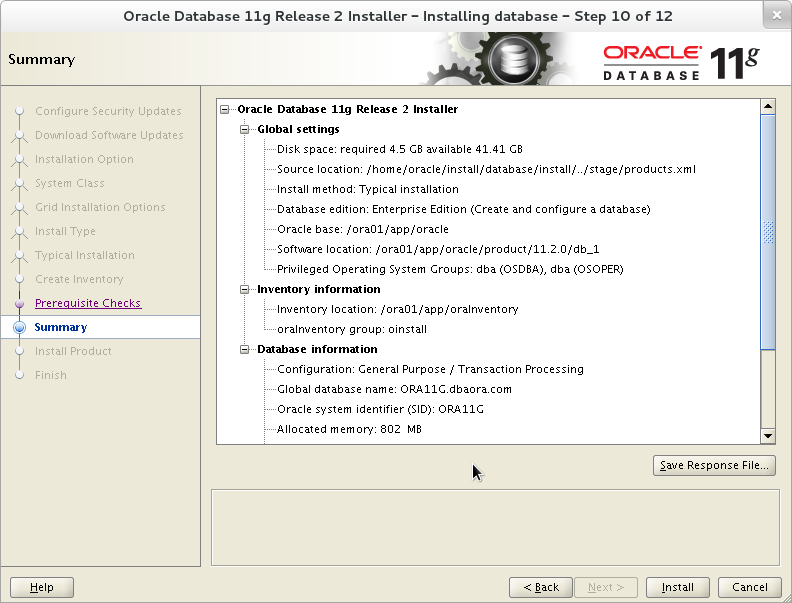
13. Boring installation …

14. I received following error during linking binaries

To fix this error edit $ORACLE_HOME/sysman/lib/ins_emagent.mk, search for the line
$(MK_EMAGENT_NMECTL)
and replace the line with
$(MK_EMAGENT_NMECTL) -lnnz11
then click “Retry” button
15. Database Configuration will start and create database for you.

16. You should see summary screen for your new database. Click “OK” button to continue with installation.

17. In the “middle” of installation you will be asked to run 2 scripts as user root. when scripts are executed just click “OK” button. Installation will proceed.

–execute scripts
/ora01/app/oraInventory/orainstRoot.sh
/ora01/app/oracle/product/11.2.0/db_1/root.sh
18. Installation completed. Just click “Close” button.

Post installation stepsEdit the “/etc/redhat-release” file to restore original release information.
Fedora release 20 (Heisenbug)
Edit the “/etc/oratab” file to set restart flag for ORA11G to ‘Y’.
ORA11G:/u01/app/oracle/product/11.2.0/db_1:Y
本文转载自:http://dbaora.com/install-oracle-11g-11-2-0-4-on-fedora-20/